Polls let you collect instant, structured feedback from your audience. Whether you want to gauge opinion, check understanding, or make a group decision, polls give you clear results in seconds.
Step 1: Open your session
Navigate to your Dashboard and click on the session where you want to add a poll. You'll be taken to the session view.
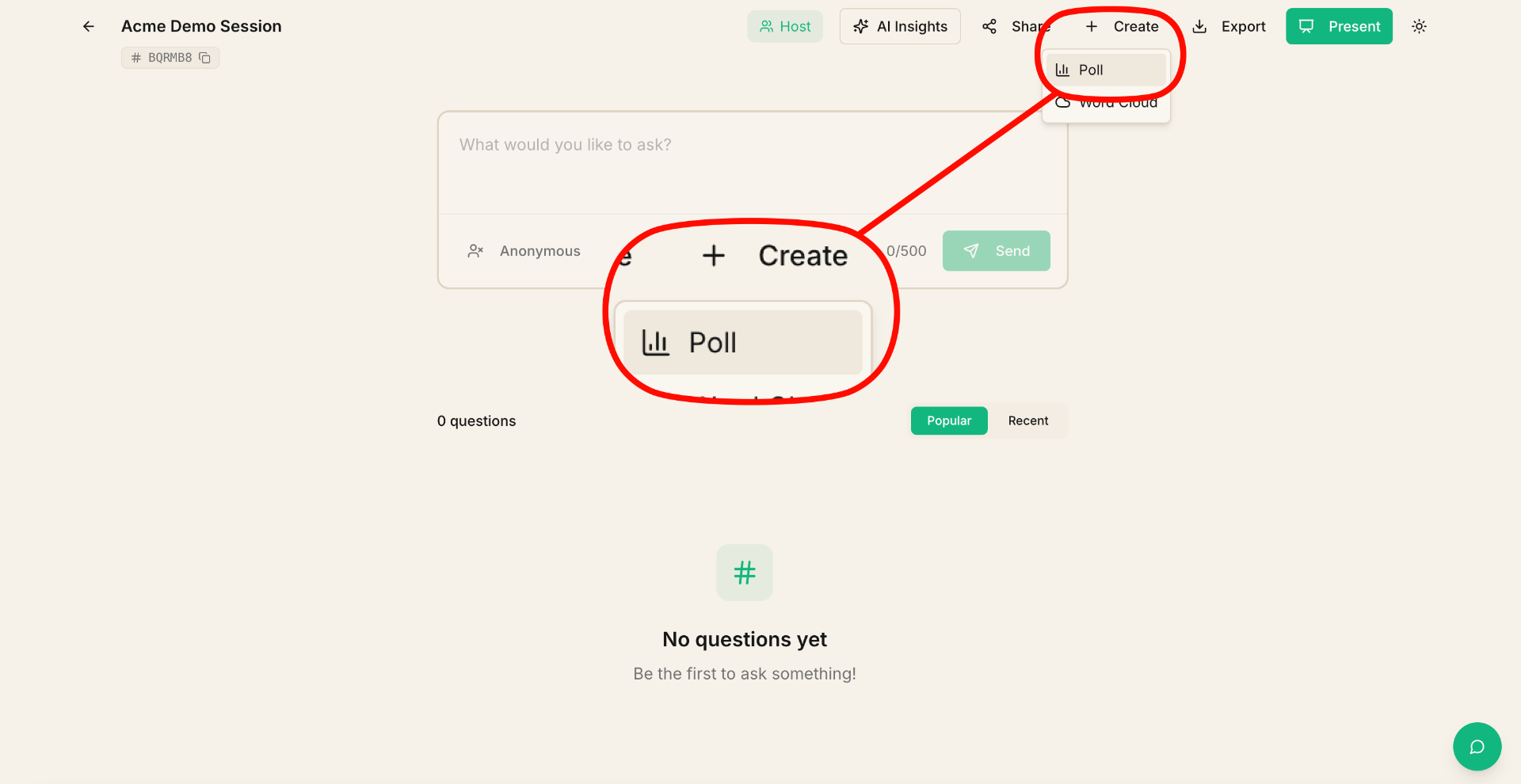
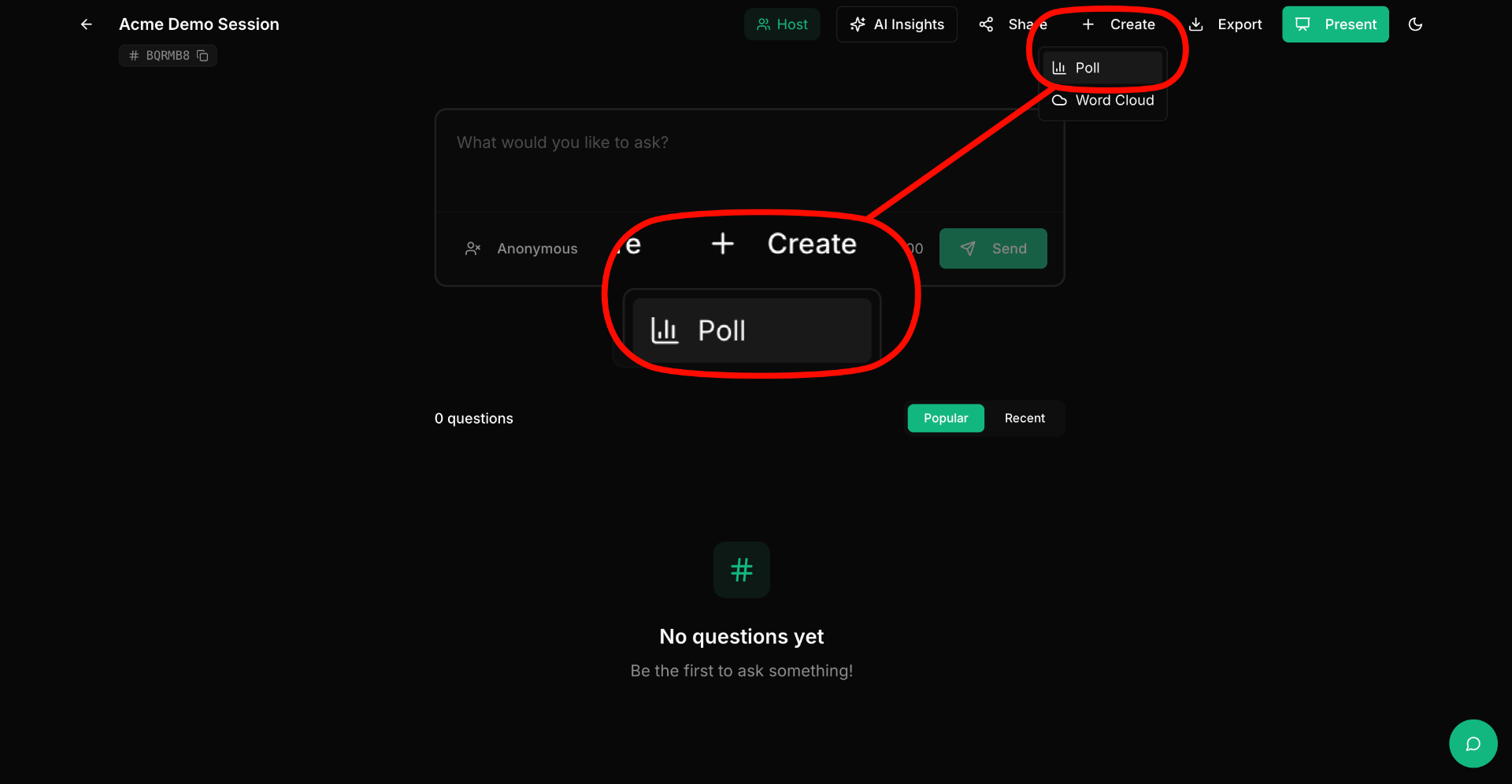
Step 2: Open the Create menu and select "Poll"
In the session header, click the "+ Create" dropdown and select "Poll". A dialog will open where you can configure your poll.
Step 3: Write your question and options
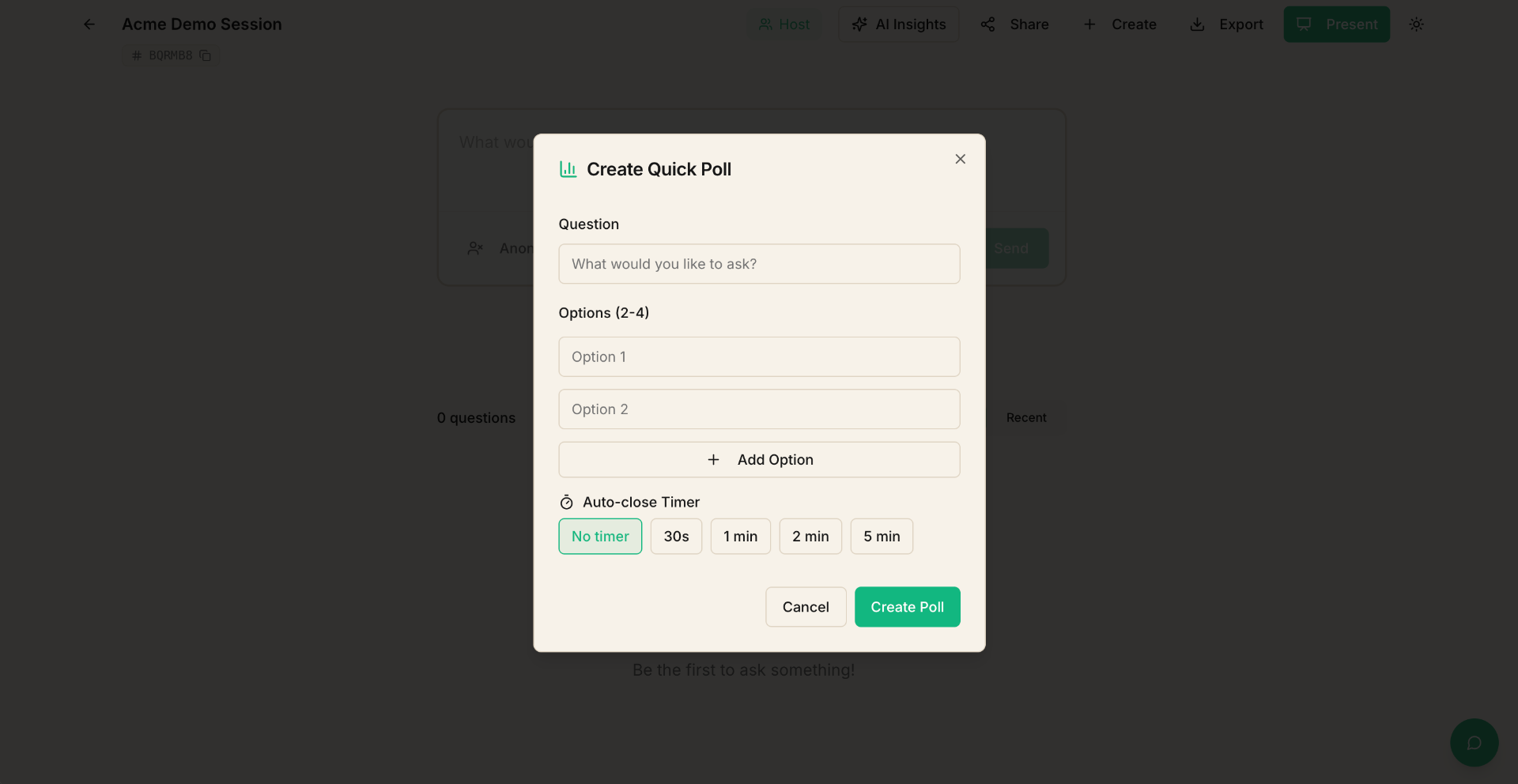
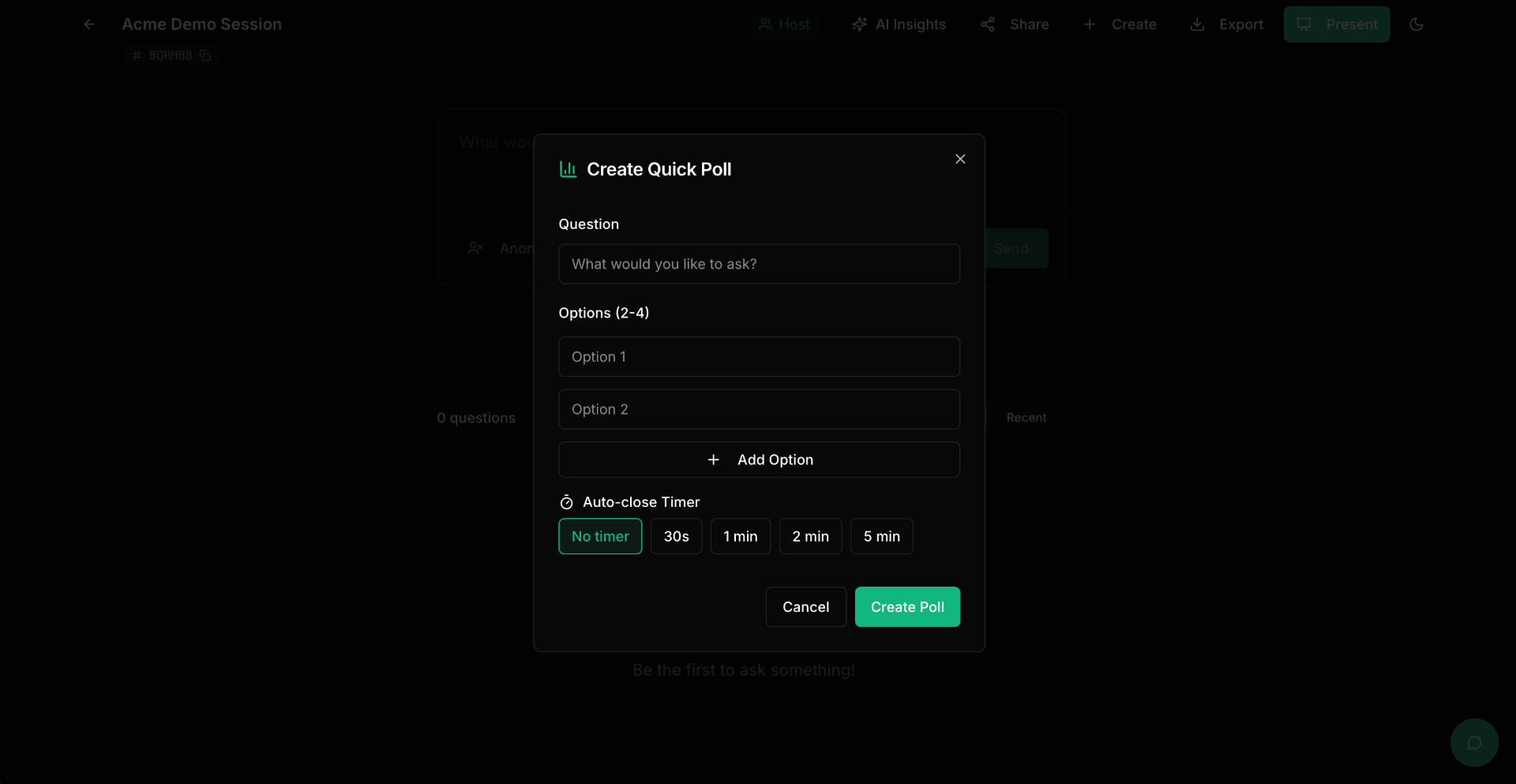
In the poll creation dialog, you'll configure:
- Question — the question you want your audience to vote on (e.g., "Which topic should we cover next?").
- Options — add two or more answer choices. Click "Add option" to add more.
- Timer (optional) — set a duration to automatically close the poll after a set time (e.g., 60 seconds).
Step 4: Launch the poll
Click "Create" to launch the poll. It will immediately appear for all participants in the session. Votes come in in real time, and you'll see a live bar chart of results.
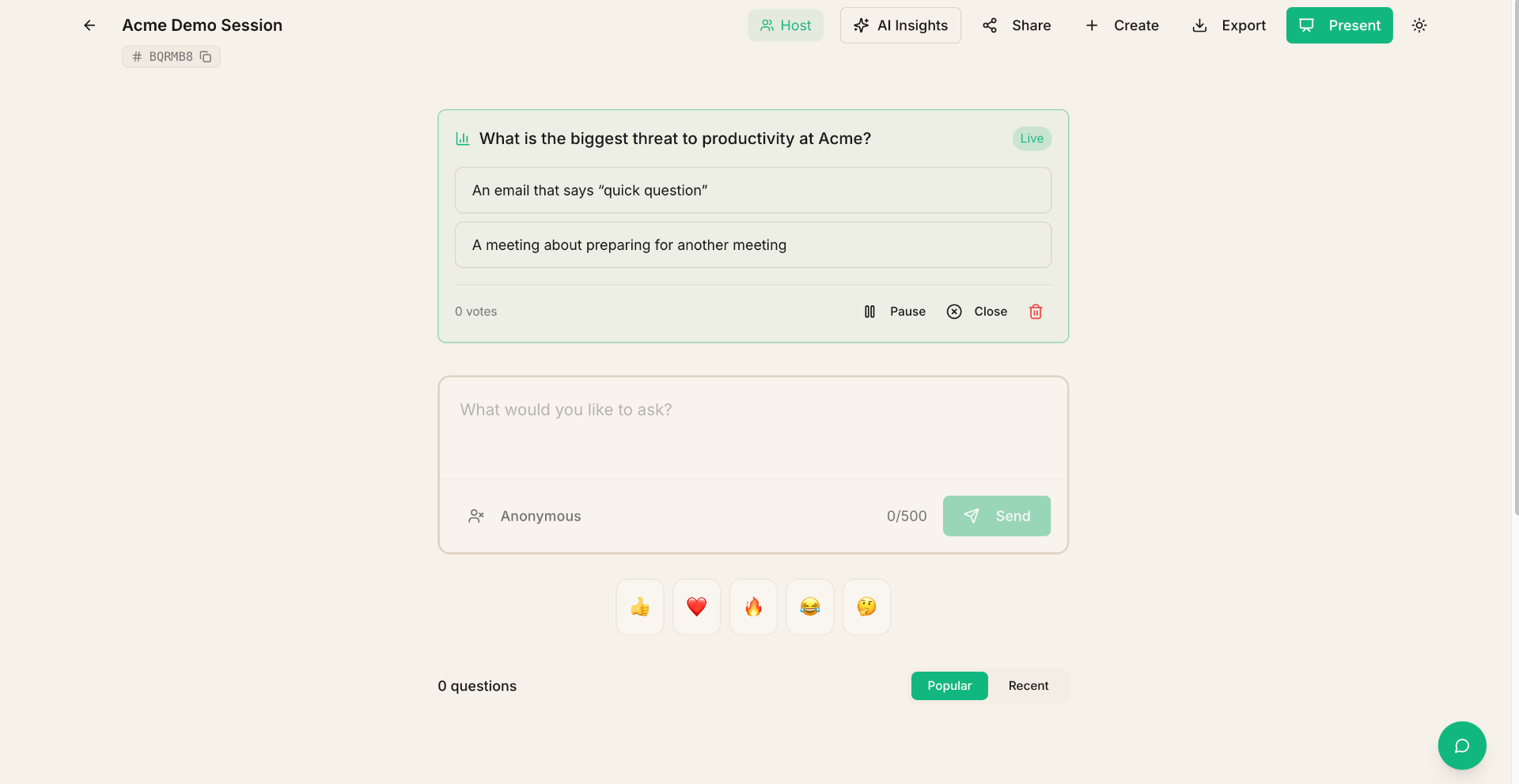
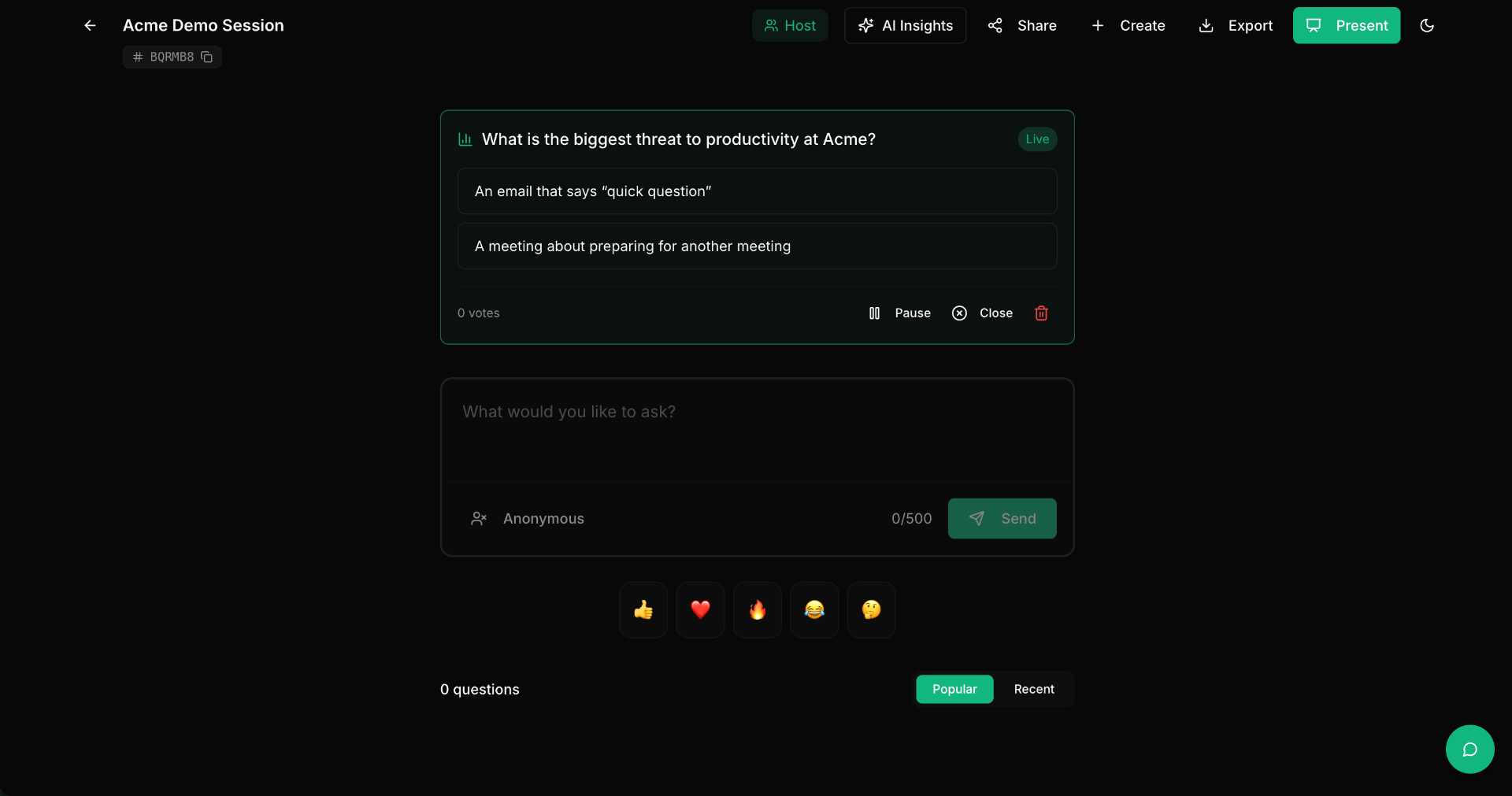
Step 5: Close the poll
When you're ready, click "Close Poll" to stop accepting votes. The final results remain visible. If you set a timer, the poll closes automatically when time runs out.
Tips
- Keep poll questions short and specific for the best response rate.
- Use the timer for time-boxed decisions — it creates urgency and keeps your session moving.
- You can create multiple polls in a single session.
- Poll results are included in session exports and AI reports.