Creating a session is the first step to engaging your audience with live Q&A, polls, and reactions. This guide walks you through the process step by step.
Step 1: Open your dashboard
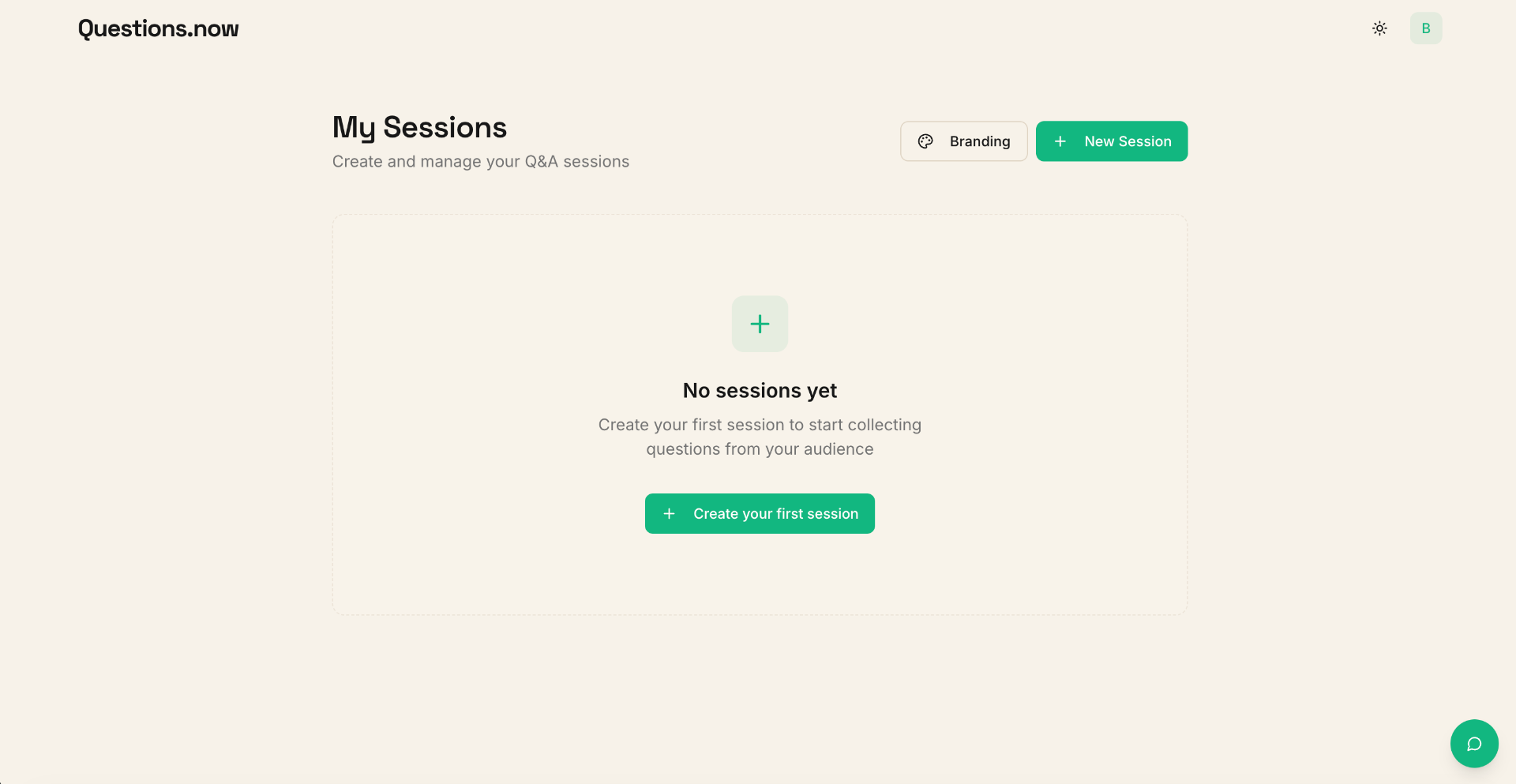
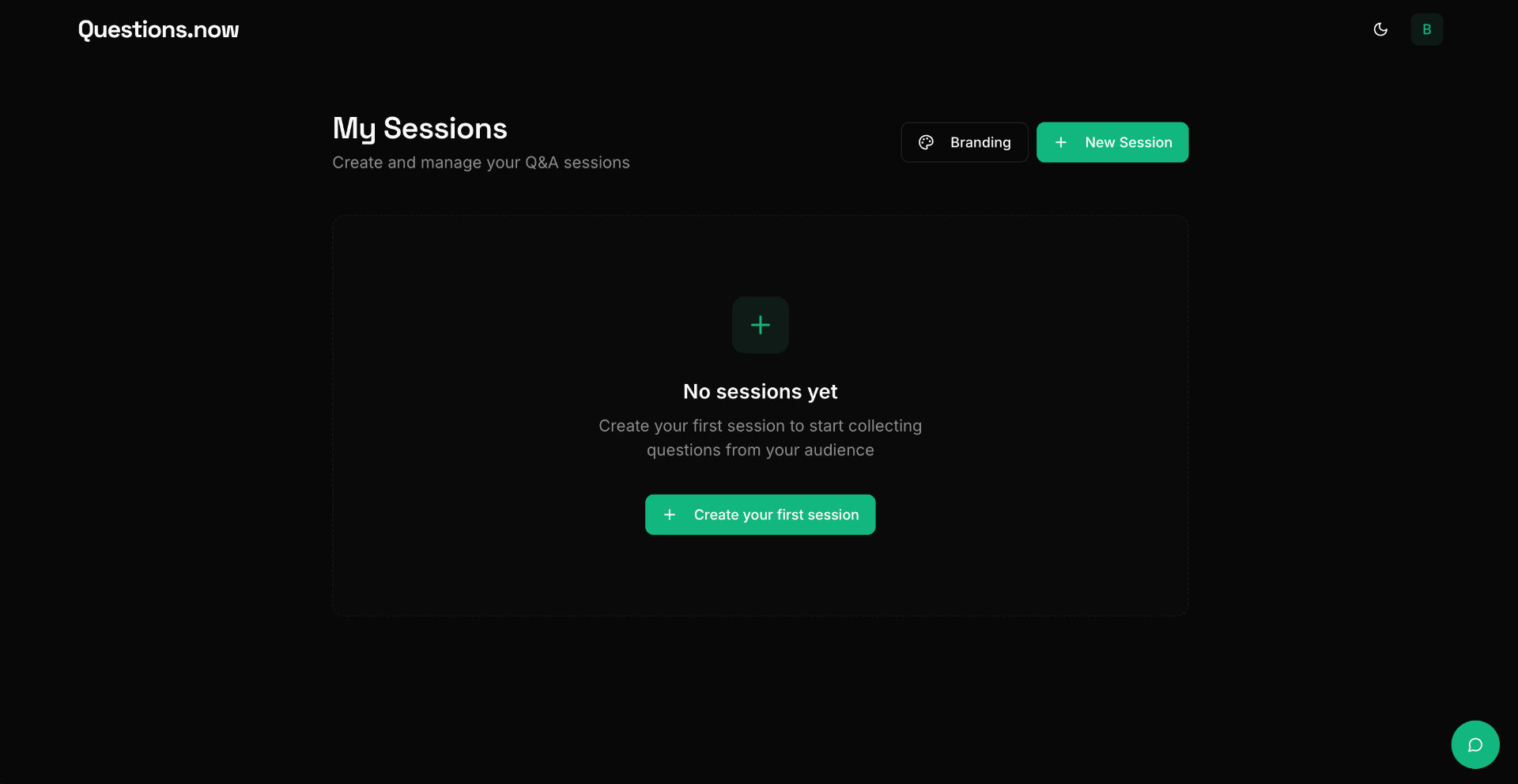
After signing in, you'll land on your Dashboard. This is where all your sessions live. If you're new, it will be empty — ready for your first session.
Step 2: Click "Create Session"
Click the "Create Session" button in the top-right corner of your dashboard. A dialog will appear where you can configure your session.
Step 3: Fill in the session details
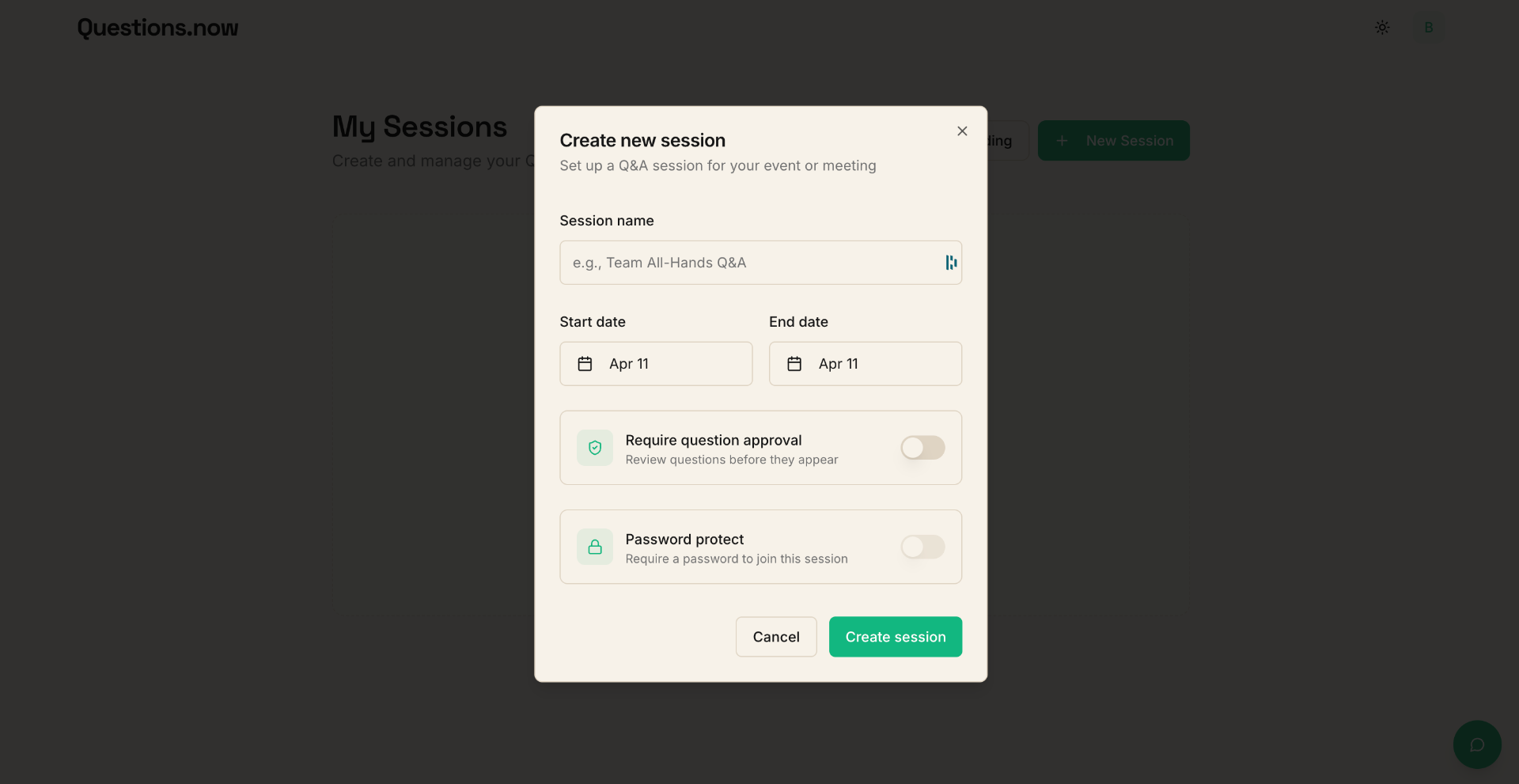
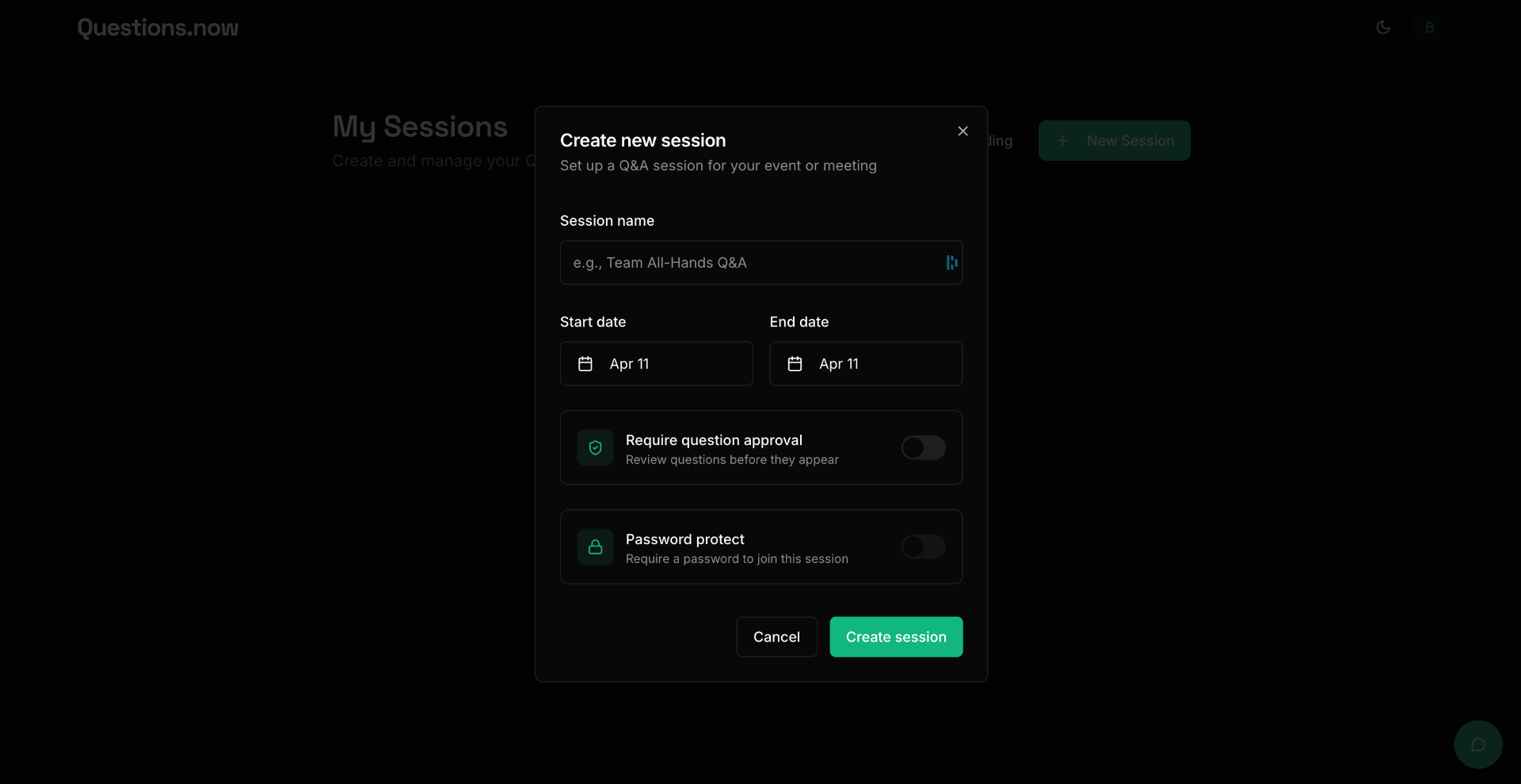
In the create dialog, you'll see the following fields:
- Session name — give your session a descriptive title (e.g., "Q3 Town Hall Q&A" or "Lecture 5: Organic Chemistry").
- Start & end dates — set the time window for your session.
- Require question approval — toggle this on if you want to review questions before they appear publicly. Great for large events or sensitive topics.
- Password protect (Pro) — restrict access so only people with the password can join your session.
Step 4: Your session is ready
Click "Create session" to finalize. Your new session will appear on your dashboard as a card showing the session name, event code, and dates.
From here, click into your session to start setting it up — add polls, word clouds, and configure any other options. When you're ready to invite participants, use the Share button inside the session to access your QR code, shareable link, and event code. Participants can join using any of these — no account required.
Tips
- You can edit the session name, dates, and settings after creation from the dashboard.
- Use moderation mode for large audiences where you want to review questions before they go live.
- Add polls and word clouds before sharing to have everything ready when participants join.
- Share the session link or QR code on a slide, in a chat, or via email before your event starts.