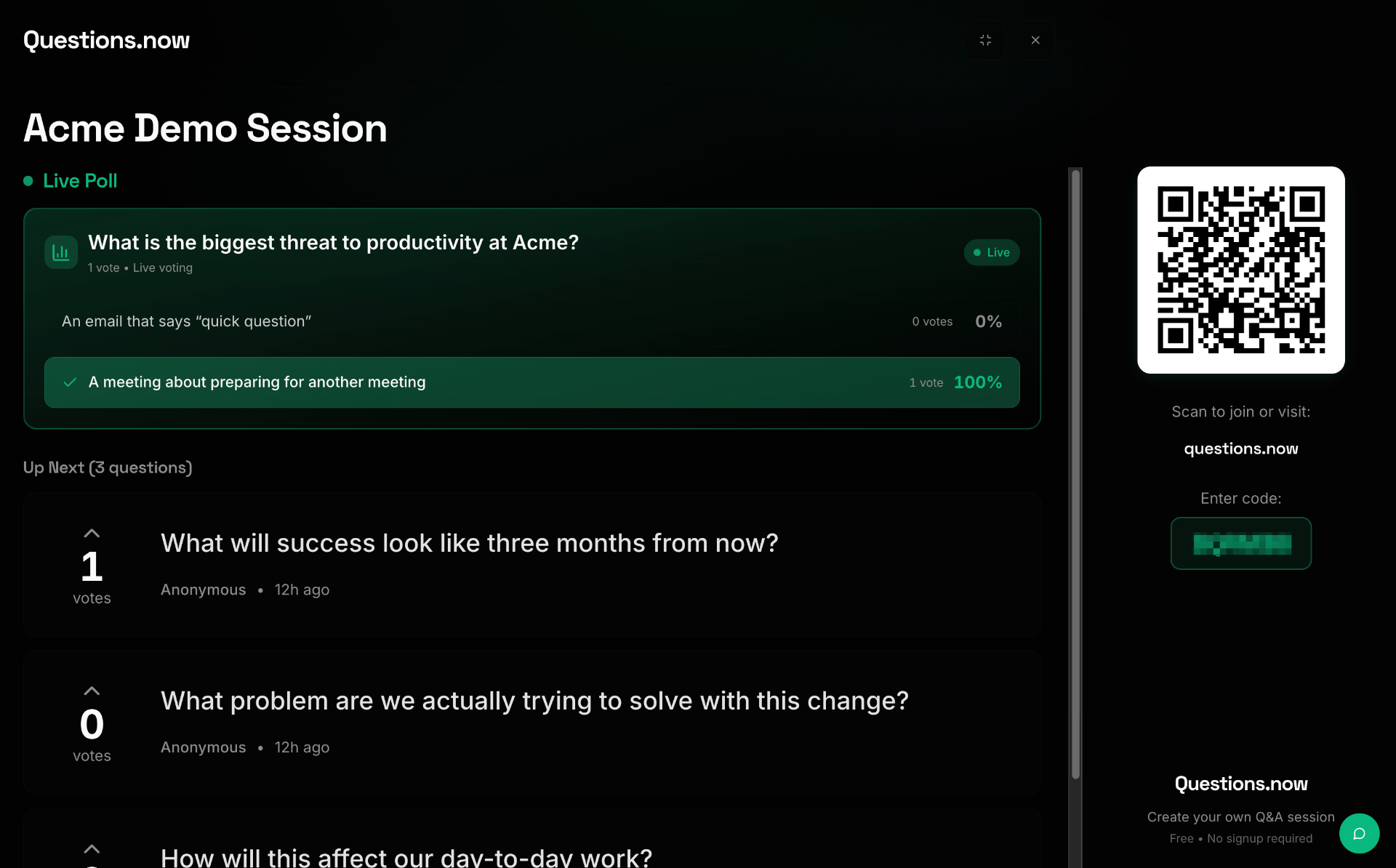
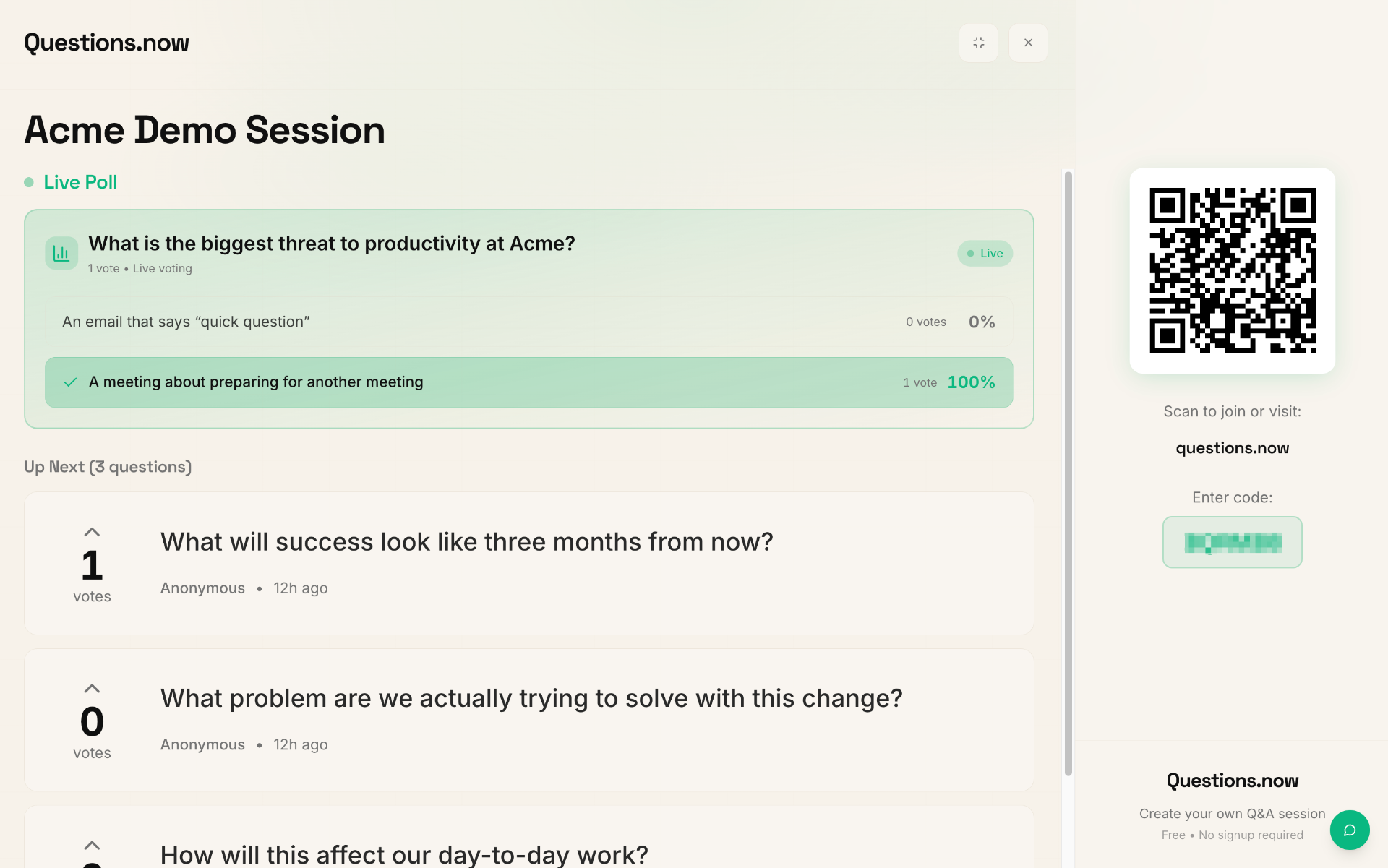
Presenter Mode gives you a clean, full-screen view of your session designed for projection on a big screen. It shows live questions, poll results, word clouds, and audience reactions — all updating in real time.
Step 1: Open your session
Go to your Dashboard and click on the session you want to present.
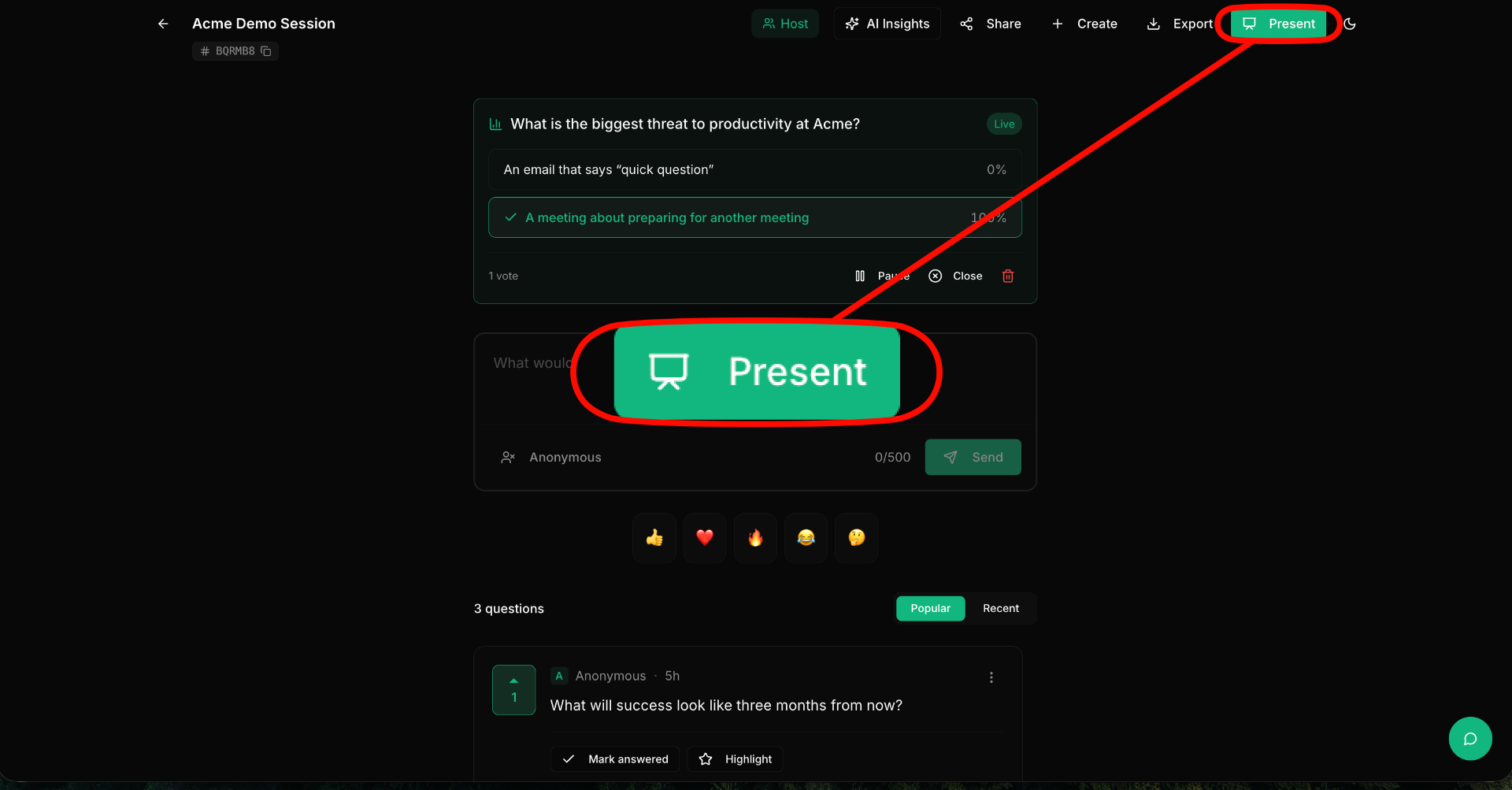
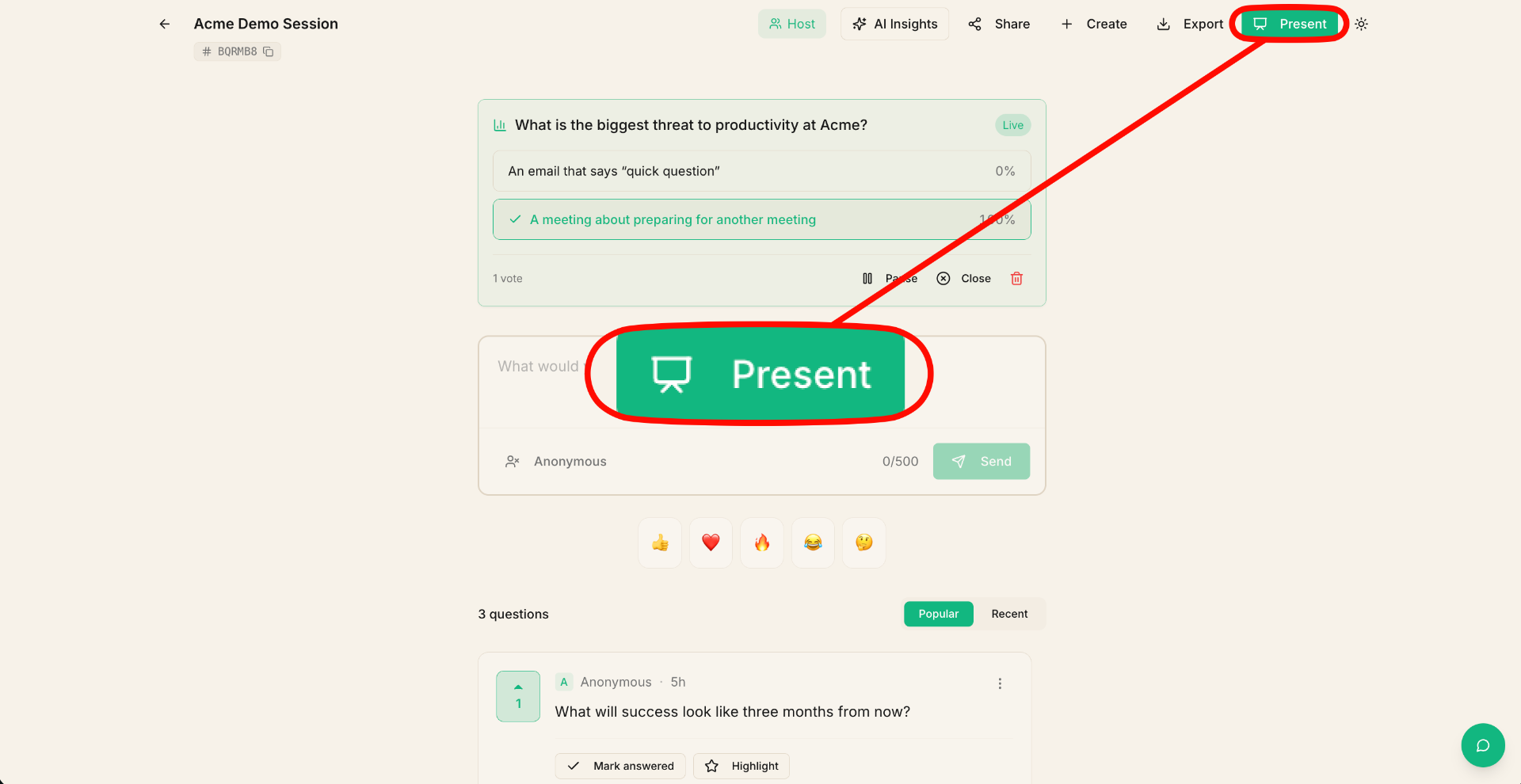
Step 2: Click "Present"
In the session view, click the "Present" button. This opens your session in a dedicated full-screen presenter layout.
Step 3: Project or share your screen
Connect your laptop to a projector or share your screen via a video call. The presenter view is optimized for large displays with high-contrast text and clean layout.
Step 4: Manage from a second device
While presenting, open the regular session view on your phone or a second browser tab. This lets you:
- Approve or dismiss questions (if moderation is on).
- Highlight specific questions for the audience.
- Launch polls and word clouds.
- Mark questions as answered.
Changes you make on the management view update instantly on the presenter screen.
What's shown in Presenter Mode
- Questions — approved questions sorted by votes, with live vote counts.
- Polls — active polls with real-time vote results.
- Word clouds — active word clouds updating as submissions come in.
- Reactions — emoji reactions floating across the screen as participants send them.
- Session code & QR — always visible so new participants can join.
Tips
- Use a second device to manage the session while the presenter screen is projected.
- If your session uses branding, the presenter view will reflect your brand colors and logo.
- Presenter Mode works great for both in-person events and virtual meetings via screen share.