Brand profiles let you customize the look and feel of your sessions with your own logo, accent color, and background style. This gives your audience a polished, professional experience that matches your organization's identity.
Step 1: Go to Branding settings
From your Dashboard, navigate to the Branding section. Here you can create and manage your brand profiles.
Step 2: Create a brand profile
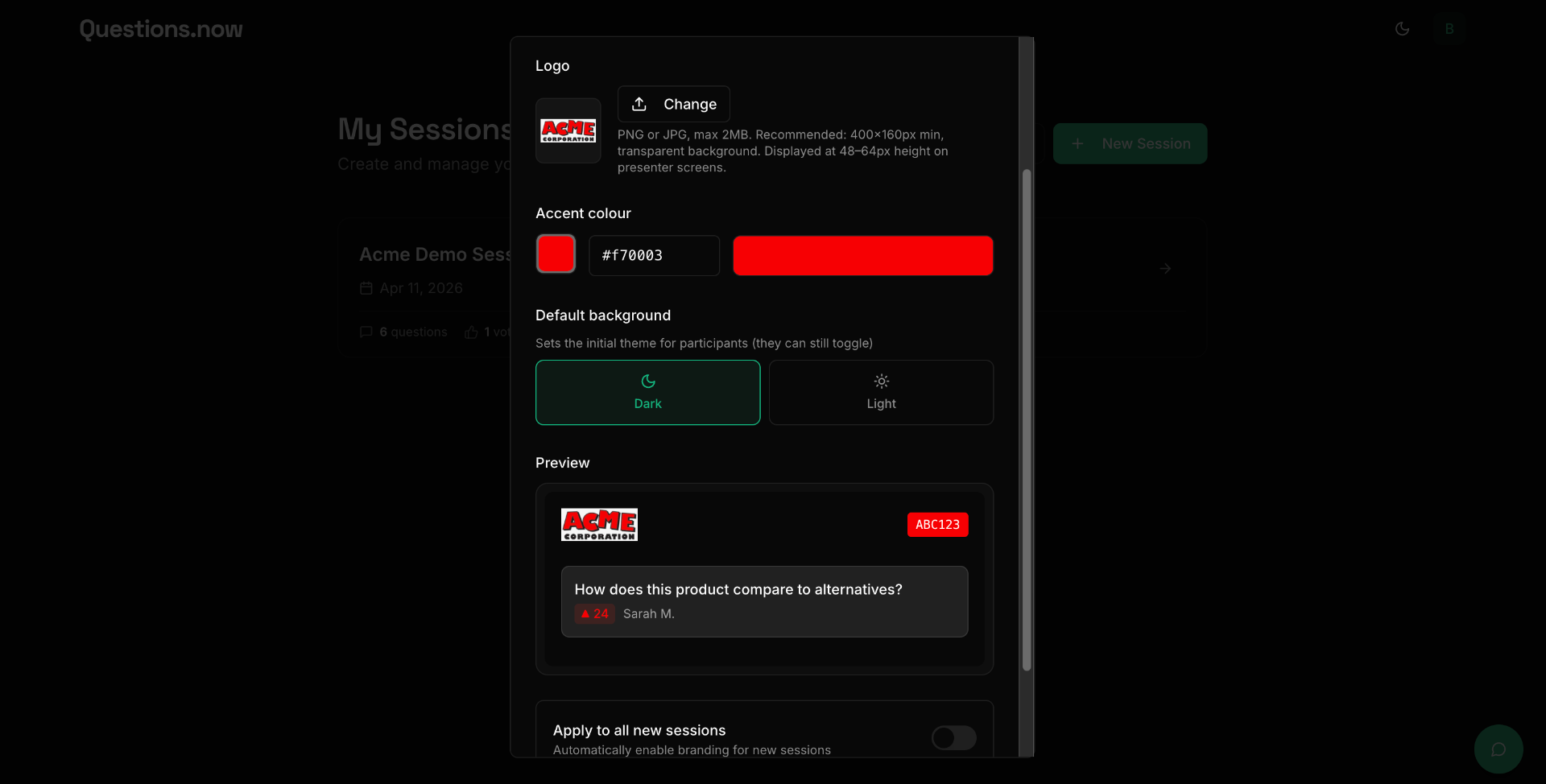
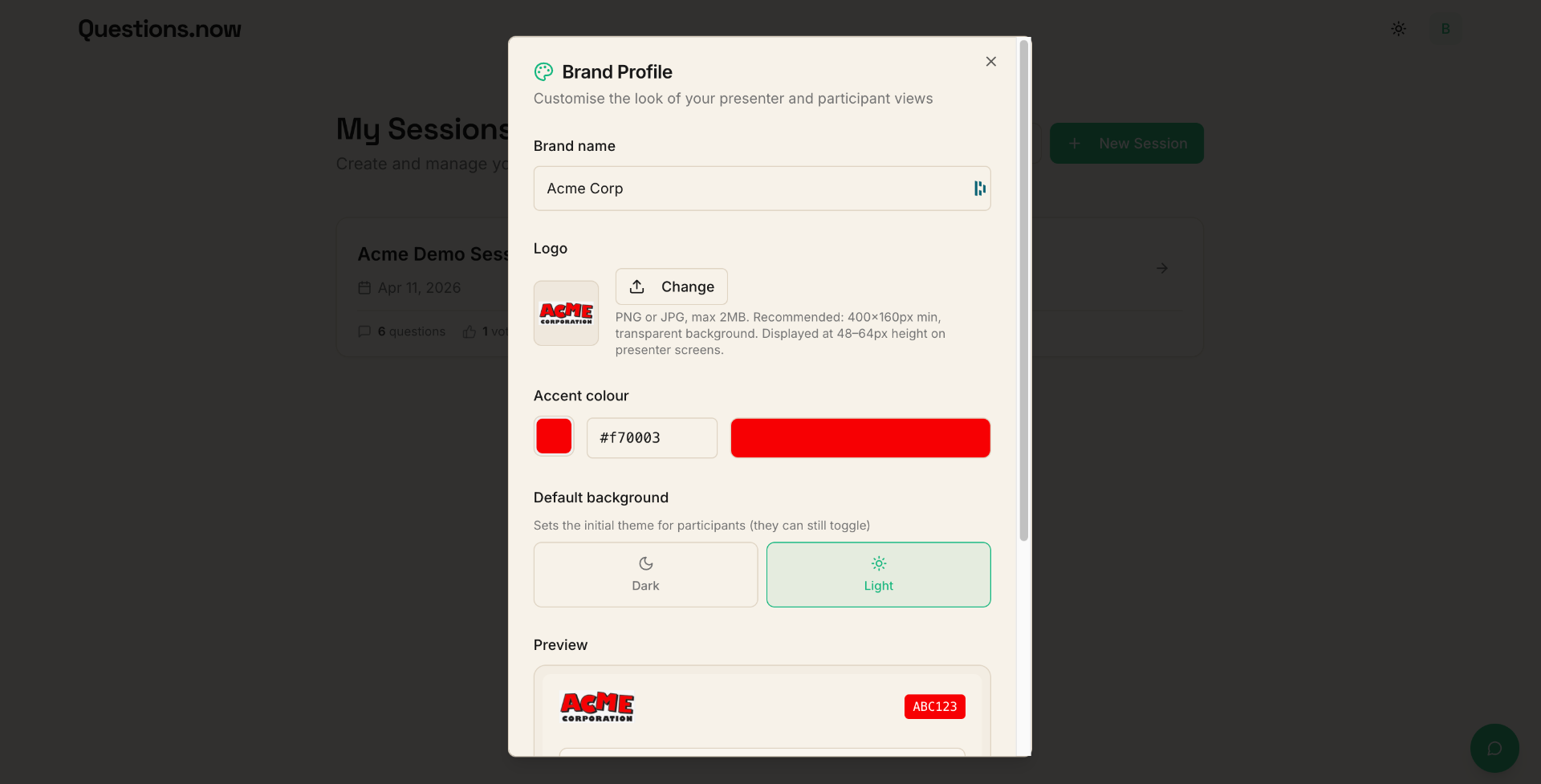
Click "Create Brand Profile" and configure:
- Profile name — a label for this brand (e.g., "Company Events" or "University Lectures").
- Logo — upload your organization's logo. It will appear in the session view and Presenter Mode.
- Accent color — choose a color that matches your brand. This color is used for buttons, highlights, and UI accents throughout the session.
- Background style — select a background treatment for the session view.
Step 3: Apply to your sessions
You can apply a brand profile in two ways:
- Apply to all sessions — toggle this on in the brand profile to automatically apply it to every session you create.
- Apply to a specific session — when creating or editing a session, select a brand profile from the branding dropdown.
Step 4: Preview your branding
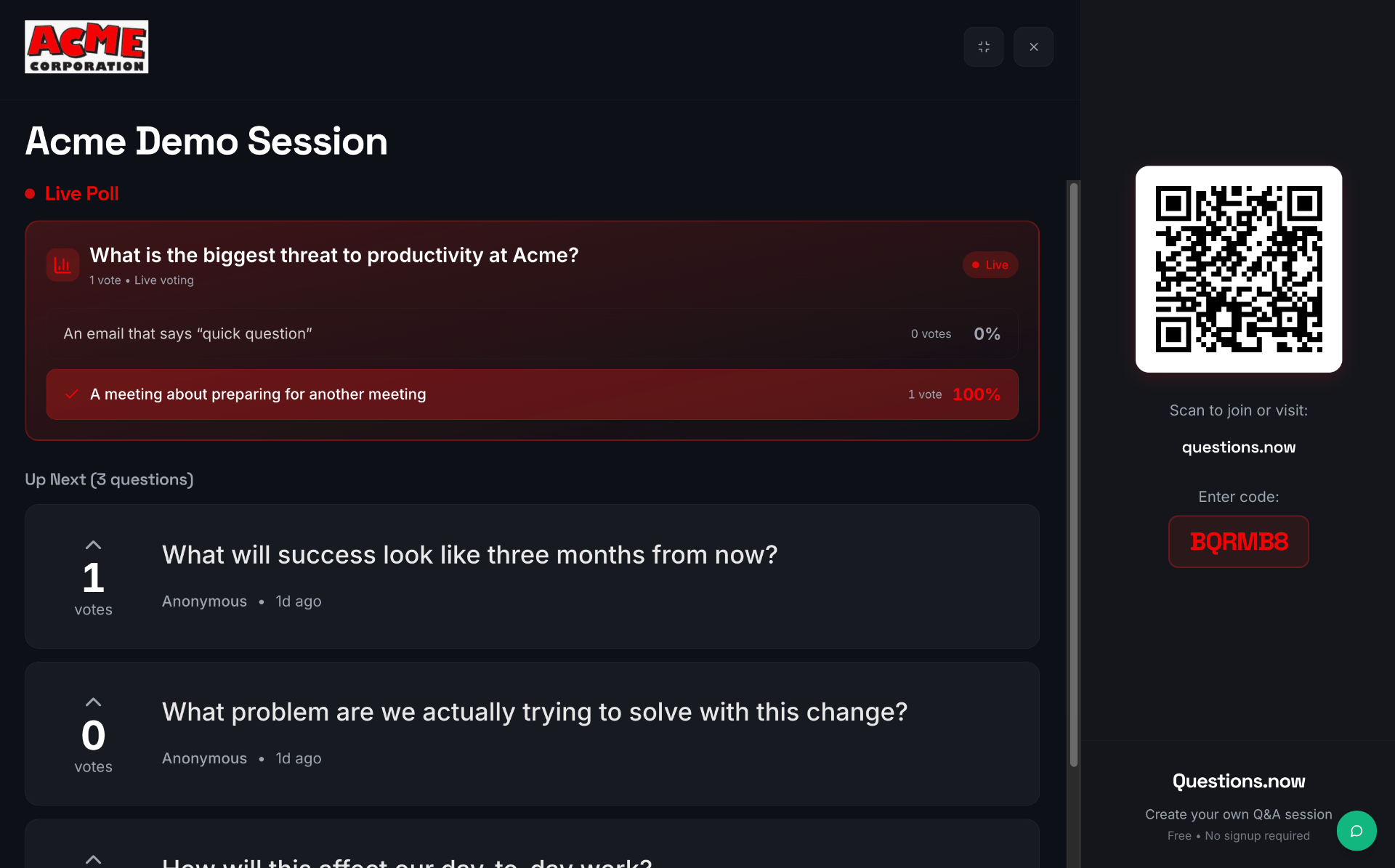
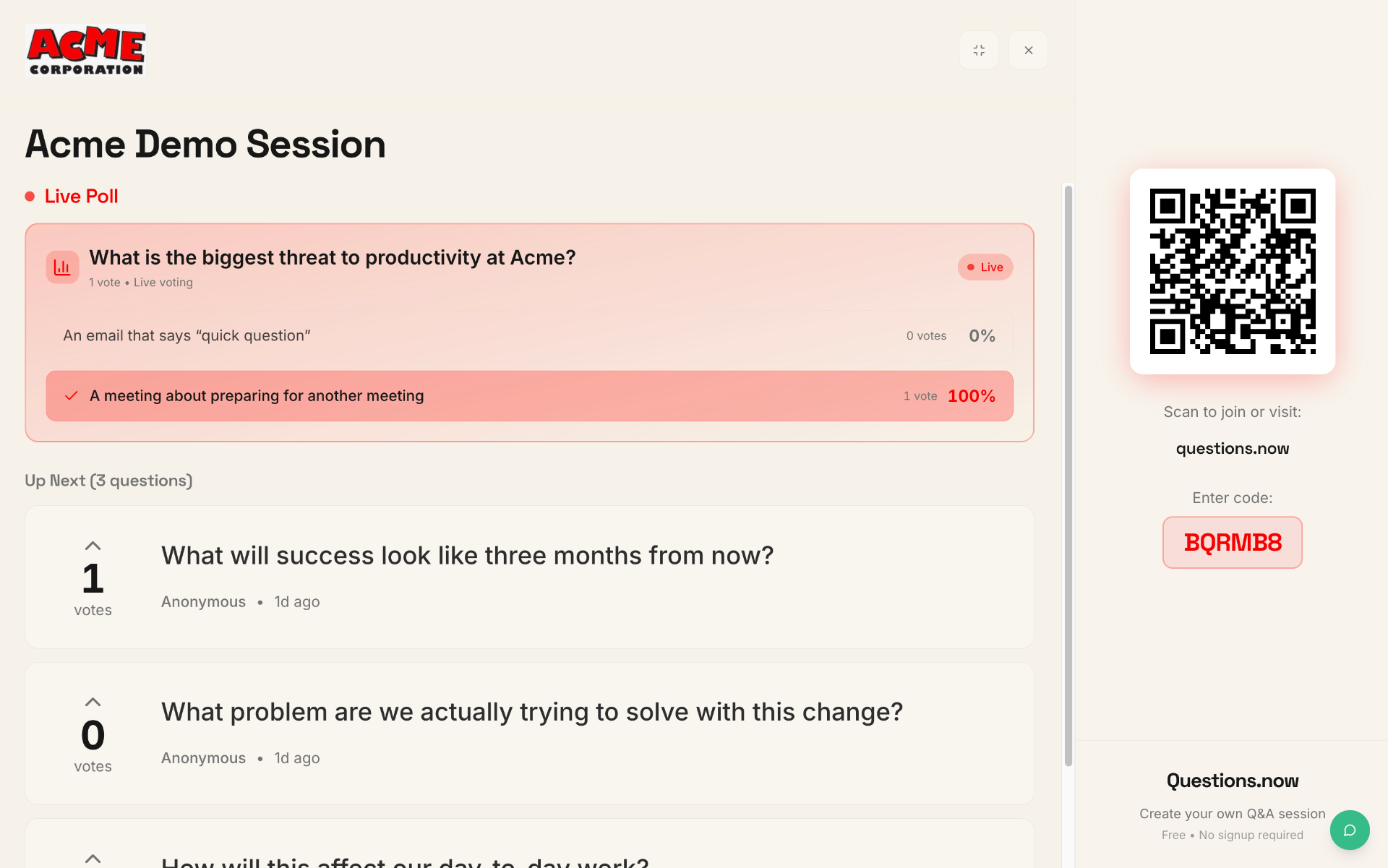
Open your session or launch Presenter Mode to see how your branding looks. The logo, colors, and background will be visible to all participants.
Tips
- You can create multiple brand profiles — useful if you run events for different departments or clients.
- Upload a logo with a transparent background (PNG) for the cleanest look.
- Branding is a Pro feature. Upgrade from your dashboard to access it.
- Your branding appears in Presenter Mode, the participant view, and exported reports.
- You can update your brand profile at any time — changes apply to all linked sessions immediately.