Moderation lets you review incoming questions before they appear to your audience. This is essential for large events, sensitive topics, or any session where you want to control the quality of what's displayed.
Step 1: Enable moderation
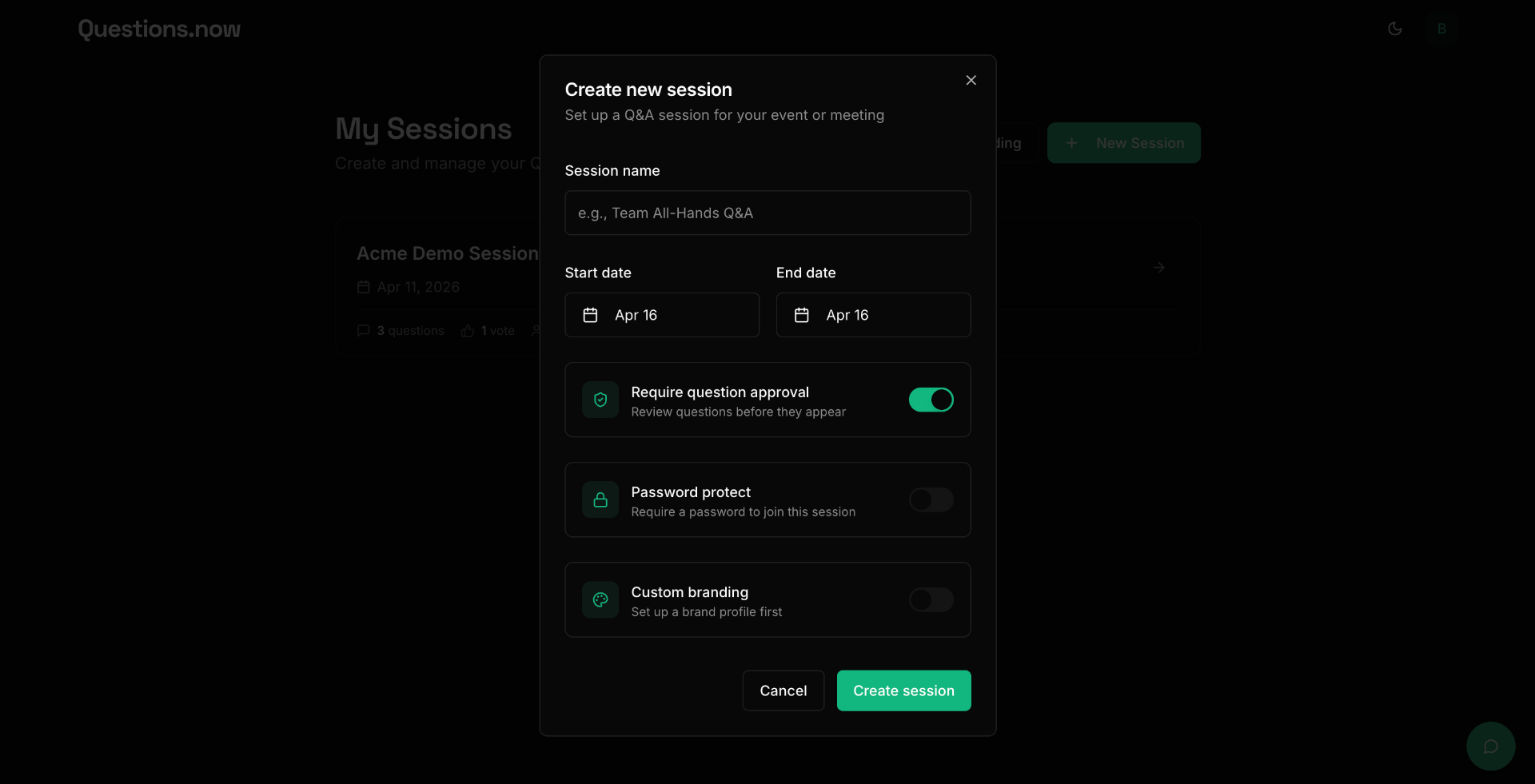
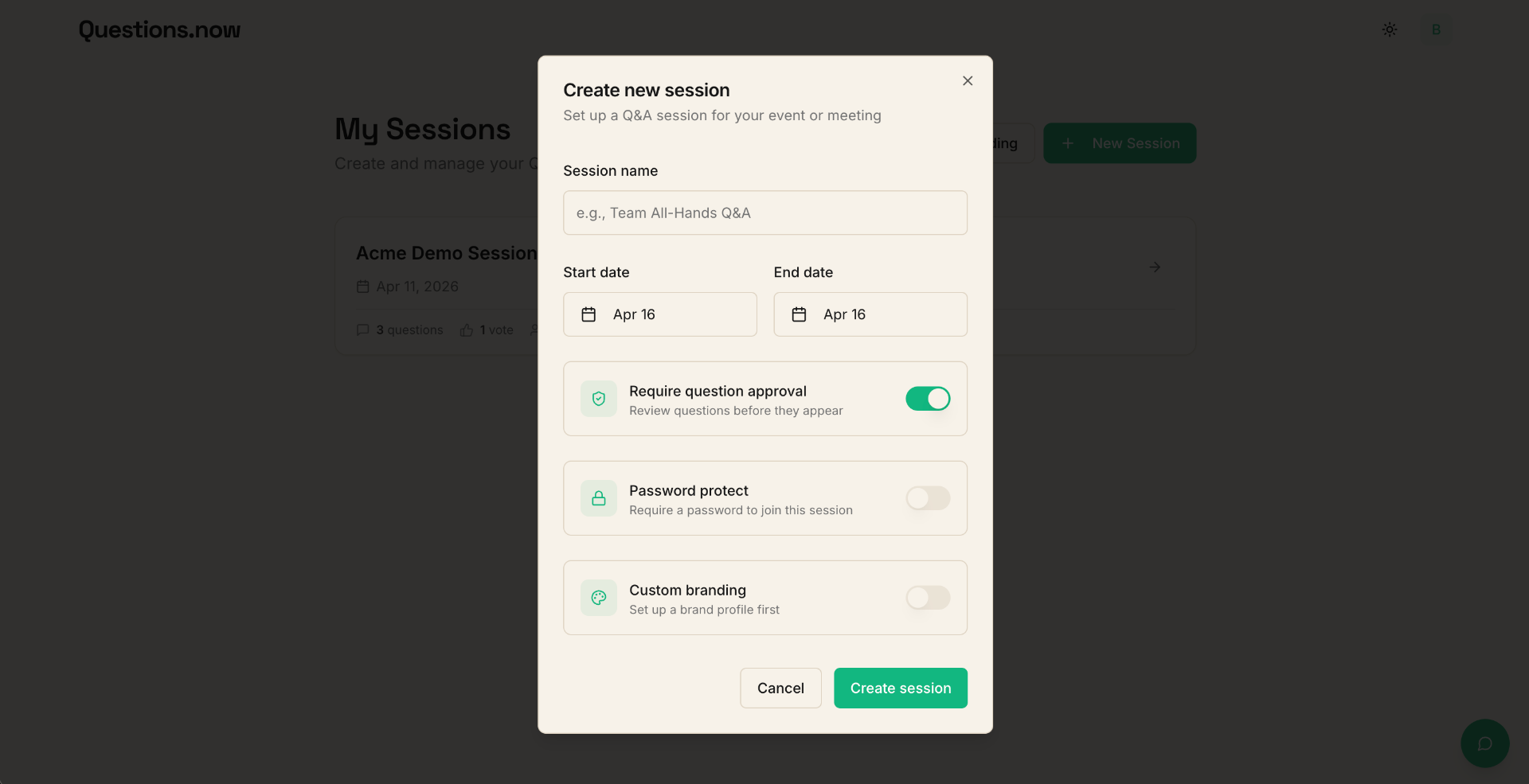
You can enable moderation when creating a new session or by editing an existing one. Toggle on "Require approval" in the session settings.
Step 2: Review incoming questions
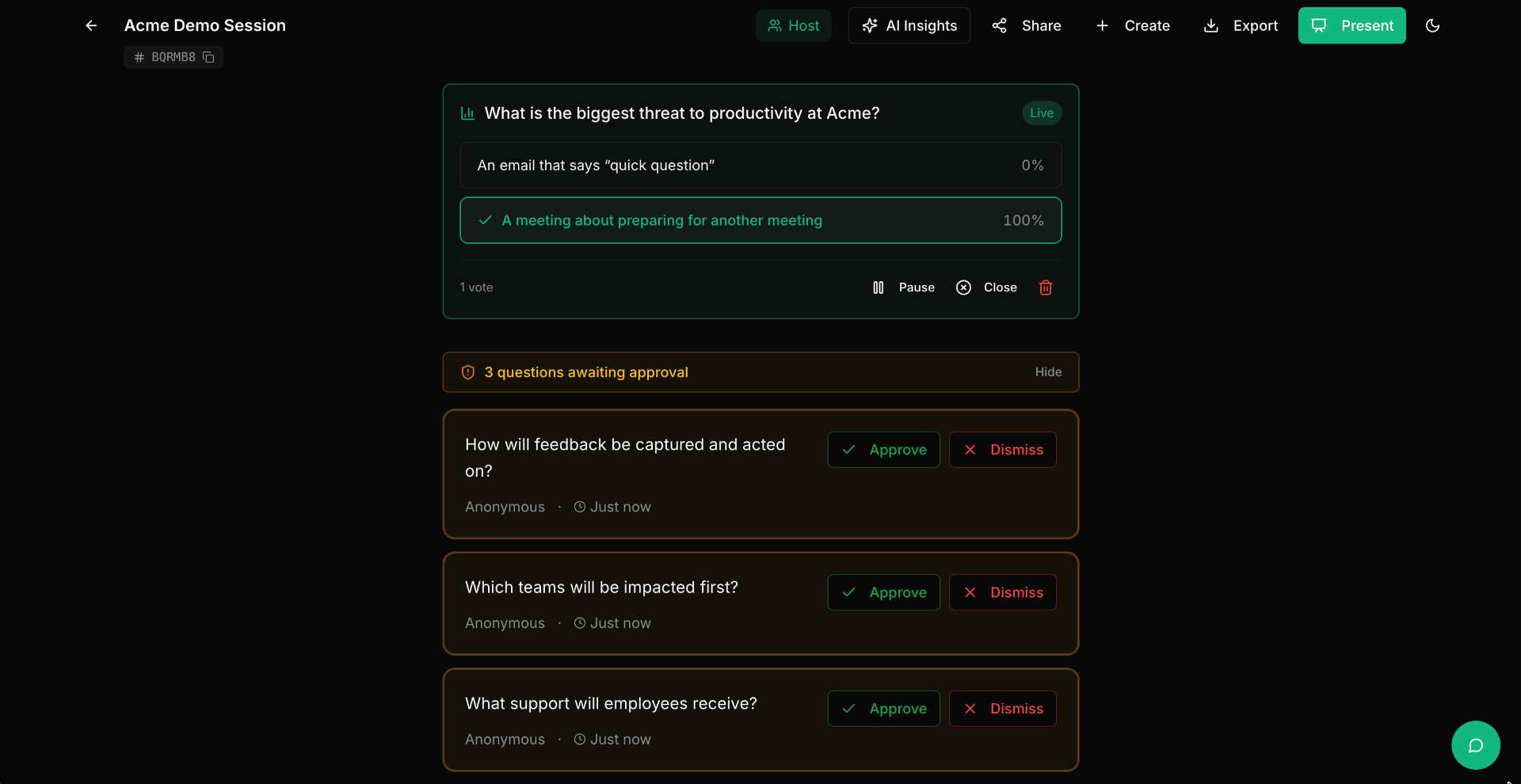
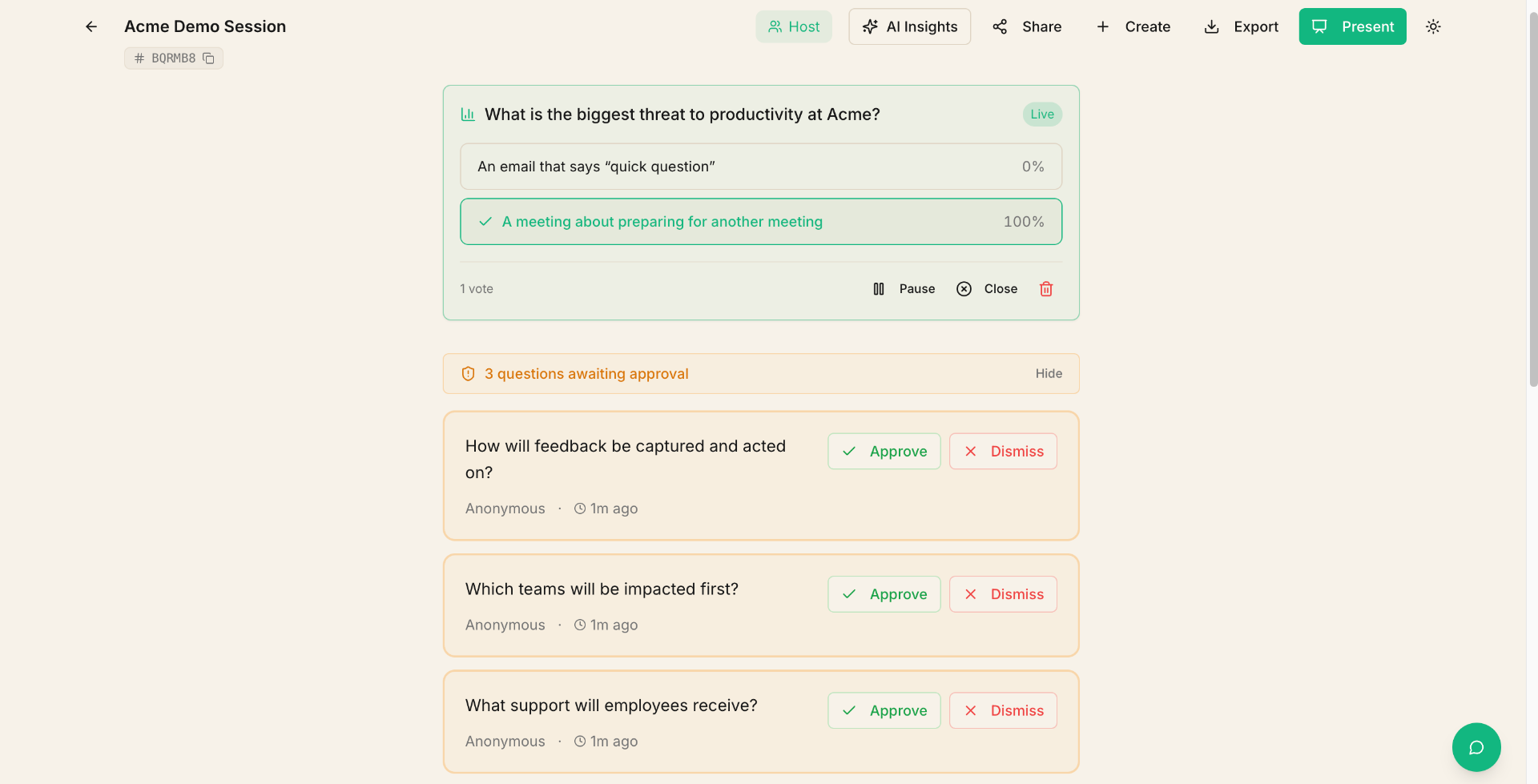
When moderation is on, new questions go into a pending queue instead of appearing immediately. In your session view, a collapsible "awaiting approval" section appears at the top of the questions feed (visible only to you as the host) listing every question waiting for review.
Step 3: Approve or dismiss
For each pending question, you have two options:
- Approve — the question becomes visible to all participants and appears in the live feed and Presenter Mode.
- Dismiss — the question is removed from the queue and won't be shown. Dismissed questions are kept in a separate "Dismissed" section for your reference, where you can restore or permanently delete them.
Step 4: Manage approved questions
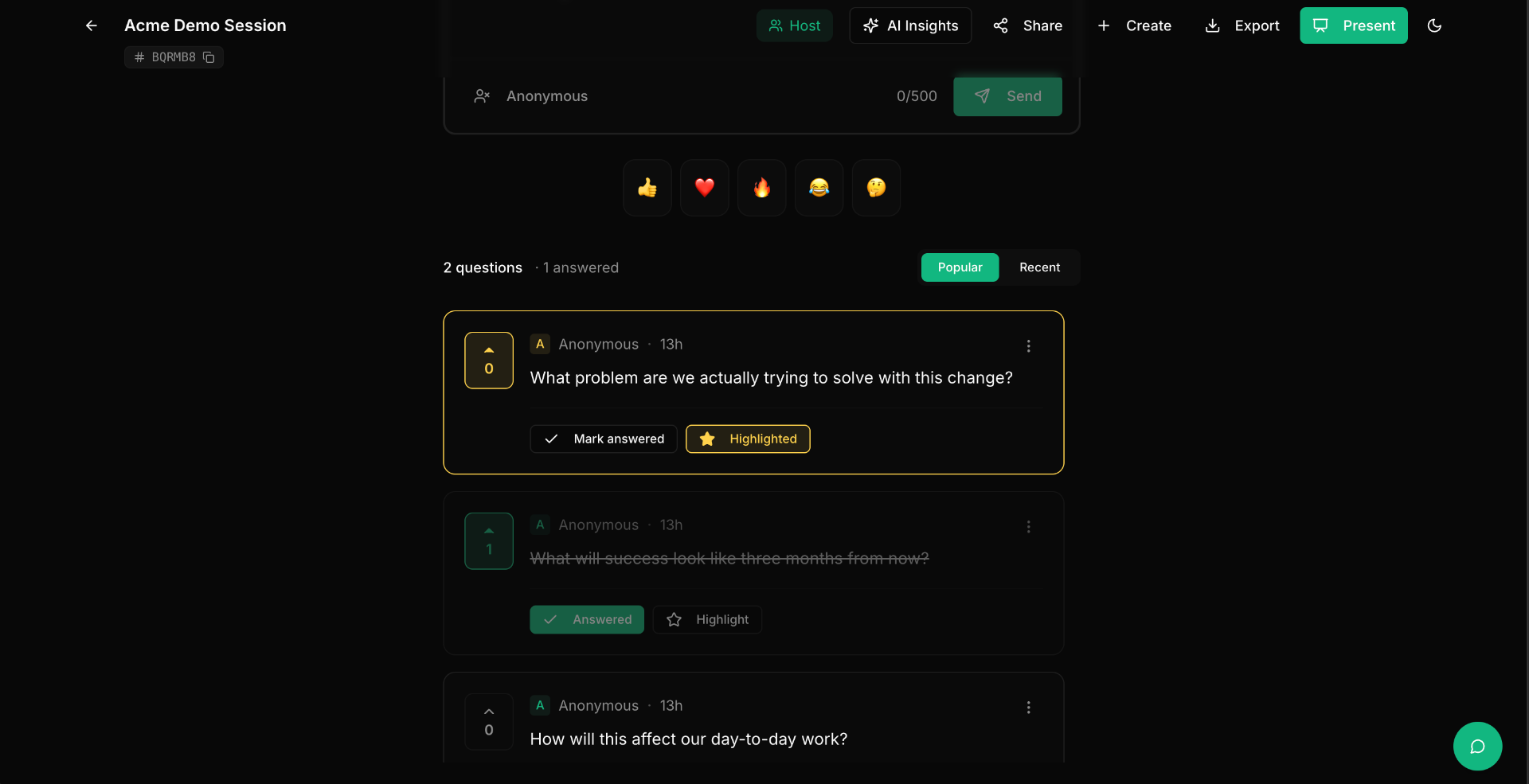
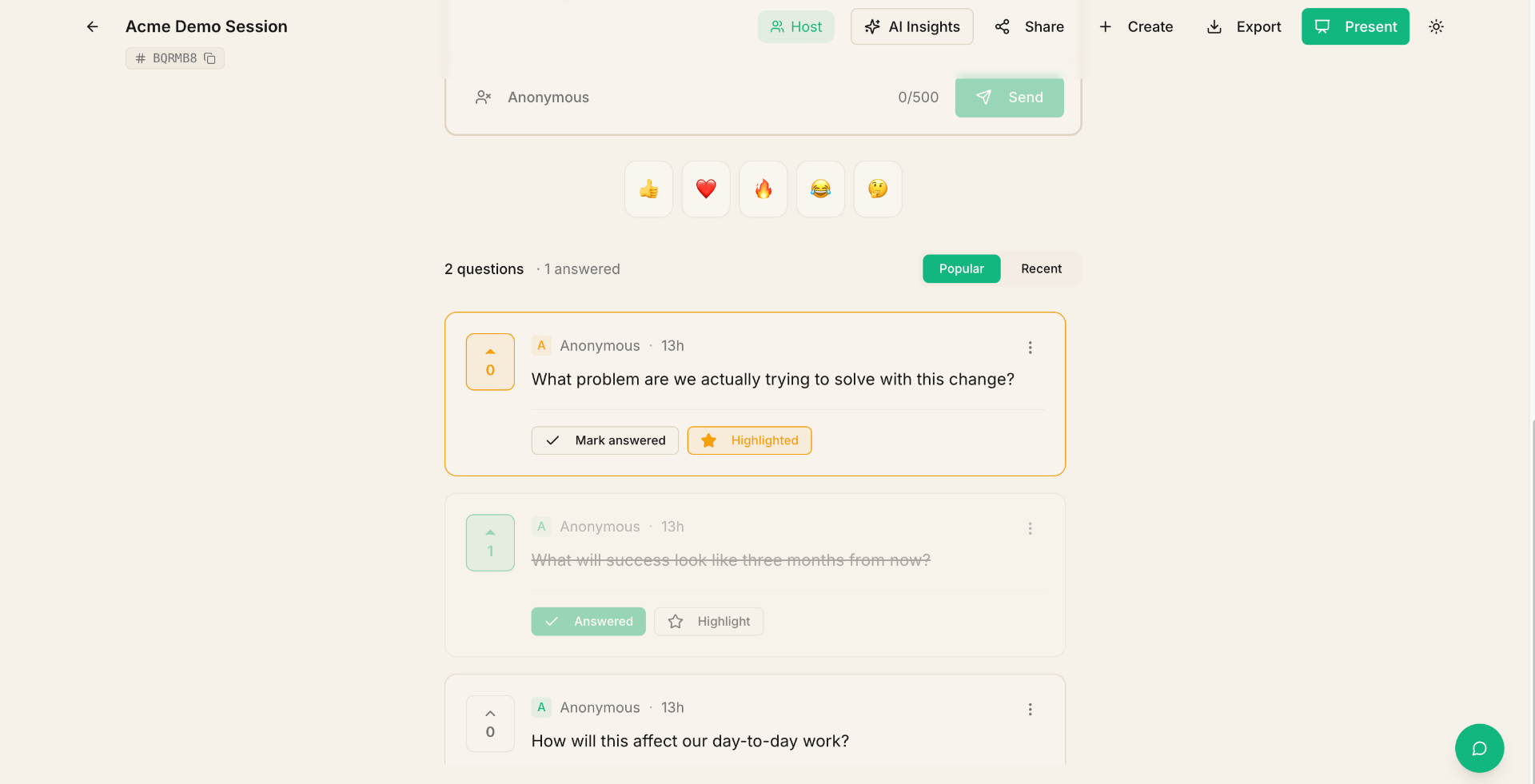
Once a question is approved, you can manage it from its card in the live feed:
- Highlight — pin a question so it stands out in the feed and Presenter Mode.
- Mark as answered — move questions to an "answered" state to keep your feed focused on what's still open.
- Edit — open the overflow menu (⋯) on a question to fix typos, clarify wording, or remove identifying information. Edited questions are marked with an "edited" indicator.
- Delete — also in the overflow menu, permanently remove a question from the live feed.
Tips
- Review questions promptly — participants may disengage if they wait too long without seeing their question appear.
- If running a large event, have a co-host manage the moderation queue while you present.
- Moderation works alongside all other features: moderated questions still receive votes, appear in polls, and are included in AI analysis.
- You can turn moderation on or off at any time during a session by editing the session settings.